LTI integration with Zoom.us

Hello.

Many collages in Japan might be considering how they start new academic year in April due to the strugling against COVID-19. And they might be researching ways to switch classes to on TV in case class rooms are closed.

This article reports the way to use Zoom Meeting with WebClass. We're looking into this operations now, and we've not finished yet. We'll update this when our examine develops.

I've had a lot of meeting on TV with laptop PCs or smartphones for several years. I heard that some conference were held with around 50 of members on TV in March in Japan. Softwares or services for TV meeting are now very easy to use. I don't afraid of treating movie files after meetings. It's just joining, discussing and leaving.

I'm looking into an integration with Cisco Webex Meetings. That will be another article.

Zoom.us Meeting

License
https://zoom.nissho-ele.co.jp/lineup/zoom_meeting/

Zooms for Education
https://zoom.us/education

If you had an account of Basic plan, your meetings limited to 40 minitues and up to 100 persons. Until the end of April, Zooms.us free limitations for educational organizations.

In this article, I report the steps to connect my basic plan account to WebClass. When you try with your educational account, there will be some differences.

Using Zoom without LMS integration

If teachers and students has each Zoom account, teachers can host meeting. Each meeting has an url to invide. So, teacher tell students the url in their course on WebClass.

For example, textbook materials are easy to write down the url and share it with students in their course. And the Timeline is one of best place to announce the meeting to students especially when there are a lot of learning materials.

Instructions to integrate with Zoom

get LTI key on Zooms.us

Zoom supports the LTI interface. We use that.

First, sign in on Zoom.us web page and open the page of LTI pro module in the market place.

Zoom.us marketplace
https://marketplace.zoom.us

LTI pro - Zoom.us marketplace
https://marketplace.zoom.us/apps/f8JUB3eeQv2lXsjKq5B2FA

Second, activate LTI pro module on your account. To do that, turn "Pre-approve" switch on and click "Install" button.

Then, you can see "Manage" tab on the LTI pro page. go to "Configure" and create a new credential.

When you click "+Create a new credential" button, you will see the four values automatically generated.

  • LTI URL
  • OAuth Redirect URL
  • LTI Key
  • LTI Secret

register LTI Key to WebClass

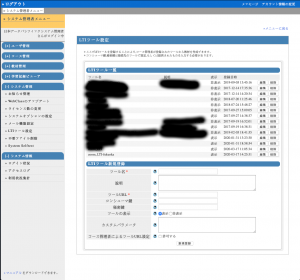
First, log in your WebClass as administrator account. If your WebClass installed with LTI, you will find "LTI tool config" page.

At the LTI tool config page, add Zoom registration with your keys.

  • Tool :Zooms.us LTI pro(feel free to change)
  • Tool URL :LTI URL
  • Consumer Key:LTI Key
  • Secret:LTI Secret

Create learning material to use Zoom on your course Zoom.us

Enter your course as author role, and open "Create materials" page.
"LTI tool" is there.
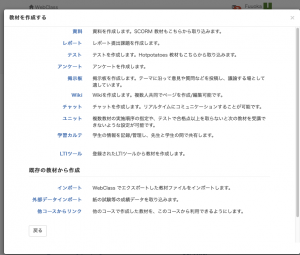
Select your Zoom LTI registration on your WebClass for LTI tool doropdown.
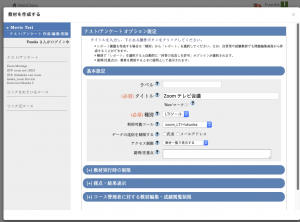
Save the material and open that as course manager, then Zoom meeting list view will be opened.
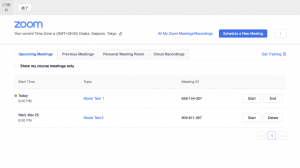
Add new meeting with "Schedule a New Meeting" button. You can get the link url to share this meeting there.
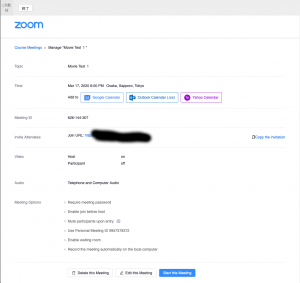
One of the best way to share the meeting url is posting that on the Timeline.

leaners will join meetings

Learners can list your meetings when they open the learning materials. When they click and open a meeting, zoom.us page will open and show them apps. download link and open apps.

To join meetings, learner have to sign in or sign up on Zoom. And they can not create meetings in your learning materials.

Zoom provides the video how zoom opens from an invitation of meeting.

https://www.youtube.com/watch?v=vFhAEoCF7jg&list=PLKpRxBfeD1kEM_I1lId3N_Xl77fKDzSXe&index=23

Other limitations and questions

Author account must be registerd with email address that is same as zoom.us account. And that zoom.us account is same as LTI Key holder on Zoom.us. This limitation is perhaps for Basic plan account.

I expect that LTI Key from educational account allows authors under the organization to make their own meetings. But actually, I don't know about this now.

Ref

Getting Started with LTI Pro - Zoomappdocs
https://zoomappdocs.docs.stoplight.io/lti-pro-v2/welcome/getting-started

LTI Pro is now available in the Zoom Marketplace
https://support.zoom.us/hc/en-us/articles/201363333-Getting-Started-with-LTI

Zoom for education
https://zoom.us/education

LTI/LMS Systems - Zoom Help Center
https://support.zoom.us/hc/en-us/sections/200305523-LTI-LMS-Systems

Zoom - Youtube
https://www.youtube.com/channel/UC2SxmE4C-KAQuHaEfHVymgQ
The design to identify easily

Do you have difficulty to recognize buttons and notes on WebClass? If you have challanging to recognize or distinguish colors, how do you look at pages on WebClass? We have been trying to make the UI "easy to use for everyone", we think. But we haven't considered the accessibility from another person's view. So, we are going to improve that. This articles sumerize the references about the accessibility guideline and check tools in Japan.

"Public Site Operation Guidelines(みんなの公共サイト運用ガイドライン)" from Ministry of Internal Affairs and Communications

We can learn a lot about accessibility guideline at this page.

http://www.soumu.go.jp/main_sosiki/joho_tsusin/b_free/guideline.html

This is a guidance for the gavernment and public instutusions in Japan to make their websites barrier-free. For specific guidelines, refer to “JIS X 8341-3: 2016”, but the contents are almost the same as WCAG 2.0 (described later). There are survey reports and seminar guidance for national and local public organizations, too.

I was interested in the last one, “Introduction video on how to use web pages for people with disabilities (障害者のウェブページ利用方法の紹介ビデオ)”. Although it is very important to design UI with solid understanding about users, we tend to think all people as same as us. It's hard to imagene how visual or color challenging people use computer. I had never used the accessibility support tool that is installed on modern OSs. Theses videos help us to know that.

Web Content Accessibility Guideline

The website “Web Accessibility Infrastructure Committee” (https://waic.jp) provides the information on “JIS X 8341-3: 2016”. This page is linked from the guidance page on Ministry of Internal Affairs and Communications we read at last section. This committee held a seminar on October 17th.

In addition to JIS X 8341-3: 2016, the translation into Japanese of the original WCAG 2.0 is also posted here.

-Quick reference
  -https://waic.jp/docs/WCAG20/quickref/
-Explanation of each quick reference item
  -https://waic.jp/docs/UNDERSTANDING-WCAG20/Overview.html
-Examples of implementation and verification methods
  -https://waic.jp/docs/WCAG-TECHS/Overview.html#abstract

Looking at the quick reference, there are some aspects to treat accessibility, and each level and detailed explanation are associated. For example, looking at “1.4.3 Contrast (minimum) level AA”, a concrete reference value is also shown: “The visual presentation of text and text images has a contrast ratio of at least 4.5: 1.”

I think that having specific viewpoints and standards is important for implementation and inspection.

Color universal design

Regarding color, the NPO Color Universal Design Organization (https://www2.cudo.jp/wp/) has released the “Color Universal Design Recommended Color Set” (http://www2.cudo.jp/wp/?page_id=1565)

This is a color palette that combines color combinations that are easy to distinguish even to those who are difficult to distinguish colors. The color palette supports three patterns for painting, printing, and screen, and a guidebook for use is also available in PDF.

According to the FAQ of the guidebook, the colors that are difficult to distinguish, or the colors that appear to be the same color, are different by each person who is difficult to identify colors. Therefore, this color palette is not a perfect pattern, but it is a color that is relatively easy to distinguish for as many people as possible.

Regardless of whether or not to use this color palette, I thought that knowing a little about how the color palette was created would be helpful in our future inspections.

Check tool

How can I make sure that I met the WCAG 2.0 sentence:"Visual presentation of text and text images has a contrast ratio of at least 4.5: 1"? Regarding the contrast ratio, You can check that on this web page based on the WCAG 2.0 criteria.

https://lab.syncer.jp/Tool/Color-Contrast-Checker/

Also, The Ministry of Internal Affairs and Communications provides checker tool called "Minna Accessibility Assessment Tool: miChecker".

http://www.soumu.go.jp/main_sosiki/joho_tsusin/b_free/michecker.html

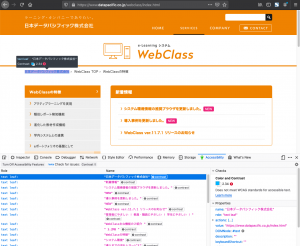
Firefox also has an accessibility check tool in a developer tool panel. Open the developer tools, open the "Accessibility" tab and enable it. I tried to check the contrast on the Datapacific homepage, but NG appeared.

Firefox accessibility check

In addition, Chrome has a browser extension that lets you recreate the web page view of people with low vision or color distinguishing hardlyness.

https://chrome.google.com/webstore/detail/chromelens/idikgljglpfilbhaboonnpnnincjhjkd

from now on

Actually, we cannot meet with WCAG2.0 at once. We should picking up the minimum items to be met. Next, I would like to establish know-how for checking and imprementing that. Then, we might be able to keep improving accessibility along with WCAG2.0.